Visitors
Every visitor to your website has a page in TraceFlow: their sessions, the pages they saw in each session in order, where they came from, and their device and location. A visitor shows as Anonymous visitor until they are named — see Identify visitors. It is for anyone who wants to know who visited, and what they looked at.
Where to find it
Open TraceFlow, click the website in the sidebar, then People. Visitors is the first section. You also reach it from Hot Visitors → View all visitors on the Overview, and from View Visitors on the visitor map.
Before you start
- The website is verified and has visits — see Quick setup.
Find a visitor
- Open the website's People page and pick a period at the top.
- Type in Search by visitor ID or email... — it also finds first and last names.
- To narrow by country, click a country under Filter by country:. Click more than one to combine them; Clear removes the filter. TraceFlow remembers your choice for this website in this browser.
- Click a visitor to open their page. A visitor with only one session opens straight on that session.
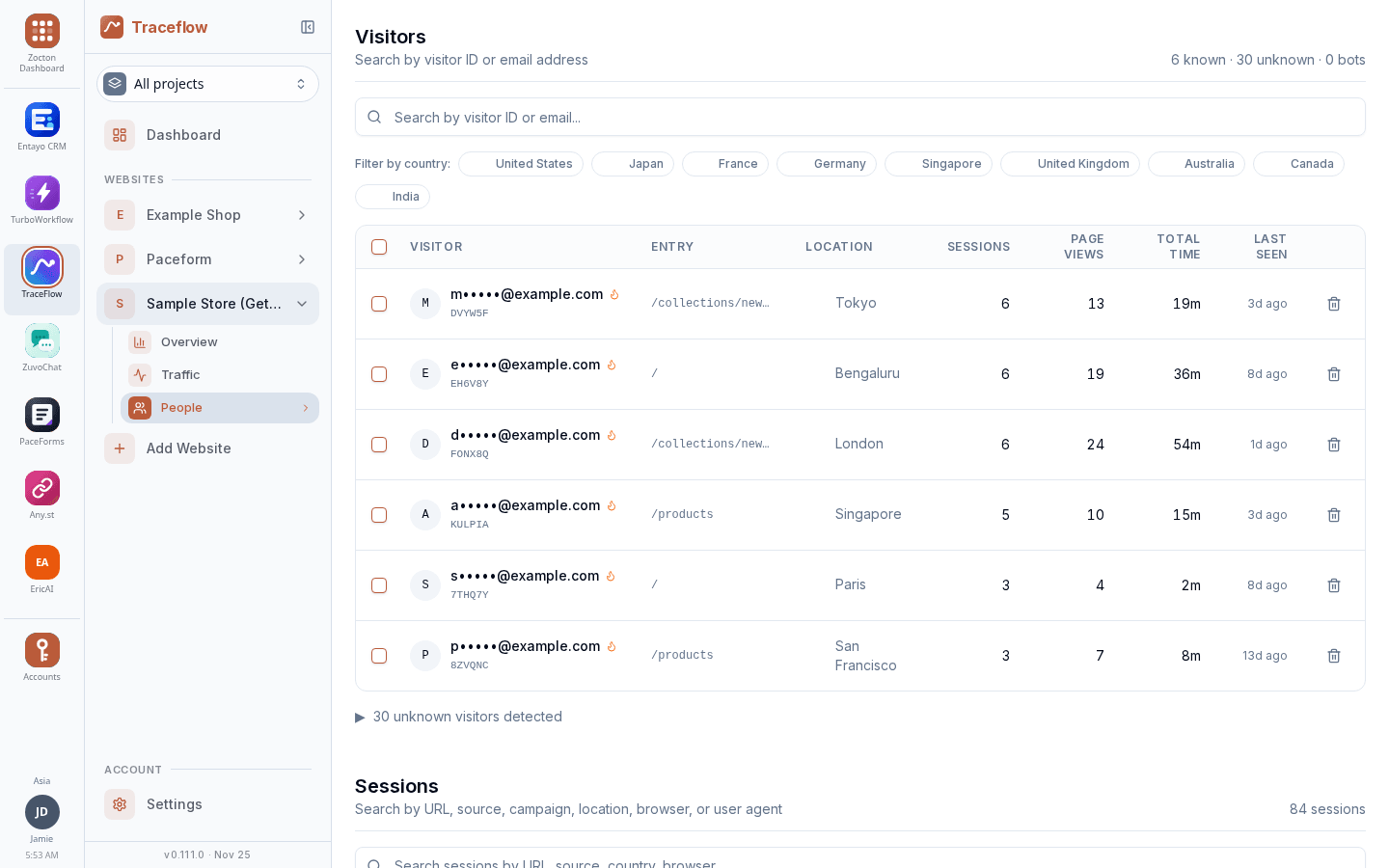
The list shows three kinds of visitor:
| Kind | What it is | How it shows |
|---|---|---|
| Known | A visitor with an email address | The main list, page by page |
| Unknown | A visitor with no email | Folded below: "N unknown visitors detected" — click to open |
| Bots | Crawlers and link previews | Folded below: "N bots detected" |
The count at the top reads, for example, "12 known · 340 unknown · 5 bots". Each row shows the visitor, their entry page, location, Sessions, Page Views, Total Time and Last Seen.
Read a visitor's page
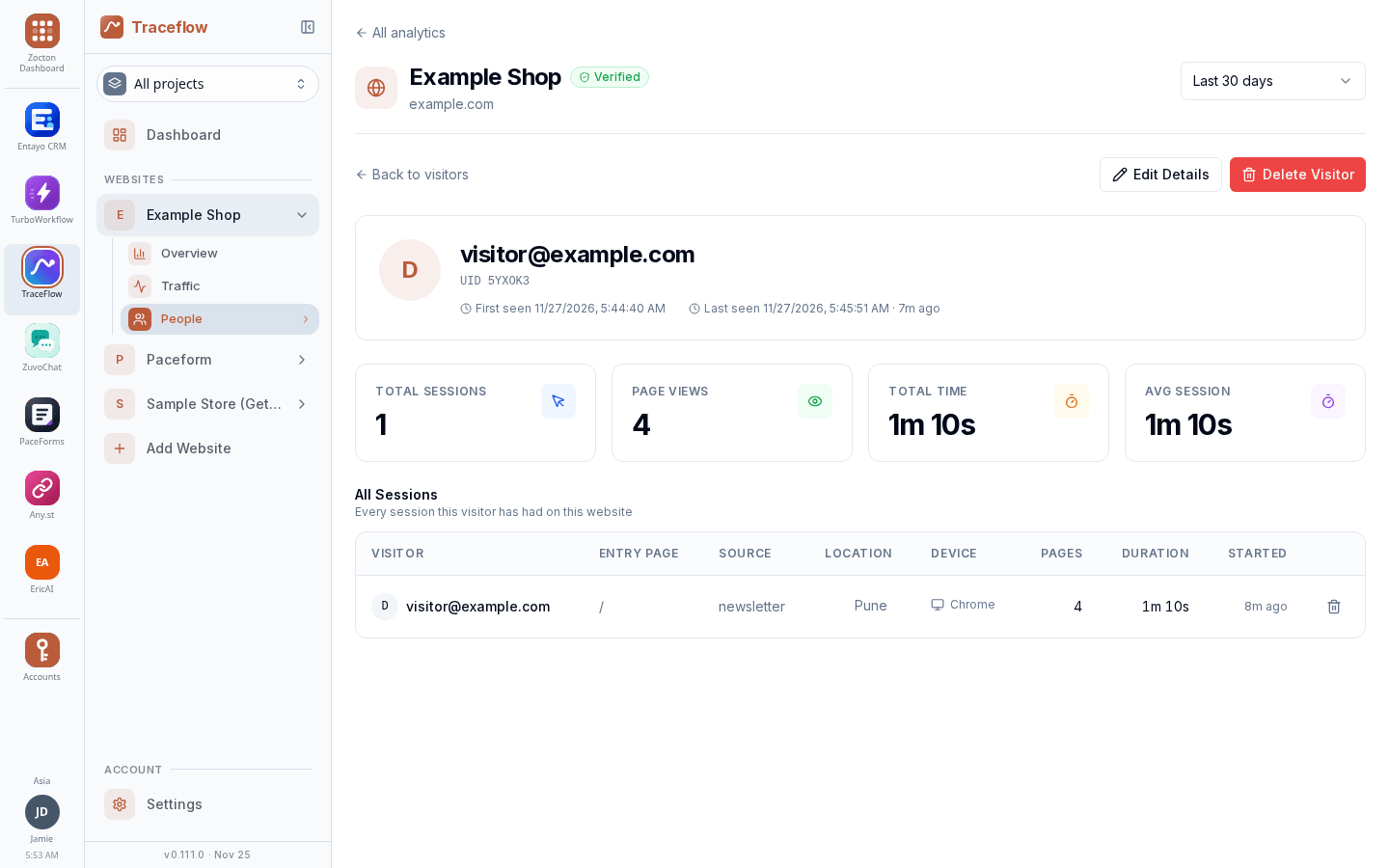
A visitor's page shows:
- their name and email (or Anonymous visitor), their visitor ID, and when they were first and last seen;
- Total Sessions, Page Views, Total Time and Avg Session;
- All Sessions — every session this visitor has had on this website. Click one to see it page by page — see Sessions and replay.
Name a visitor with Edit Details
- On the visitor's page, click Edit Details.
- Fill in Email, First name and Last name — each is optional. Leave a field empty to clear it.
- Click Save. "Visitor details saved" confirms it, and the page shows the new name.
Adding an email makes an anonymous visitor known. A name alone does not.
Delete a visitor
- On the visitor's page, click Delete Visitor.
- Click Delete to confirm. All sessions and page history for this visitor are deleted for good.
To delete several at once:
- In the Visitors list, tick the visitors (or the box at the top to select every visitor on the page).
- Click Delete N, then Delete All to confirm. Cancel clears the selection.
Options
| Option | Where | What it does |
|---|---|---|
| Search | Top of Visitors | Finds visitors by visitor ID, email, first or last name |
| Filter by country: | Under the search | Shows only visitors from the chosen countries |
| Edit Details | Visitor's page | Adds, changes or clears email, first and last name |
| Delete Visitor | Visitor's page | Deletes one visitor and all their sessions |
| Tick boxes and Delete N | Visitors list | Deletes the ticked visitors |
Good to know
- One email, one visitor, per website. An email another visitor on the same website already has is refused with "Another visitor on this website already has this email". The same email on two different websites is fine.
- The website remembers the person. When the website later names the same person by the same email, their new visits land on this visitor, not on a new one.
- Deleting cannot be undone. A known visitor already sent to your Entayo CRM stays there; delete them in the CRM too if you need to.
- Folded lists show the most active. When there are many unknown visitors or bots, the folded list shows the most active of them and says how many there are in all.