Sessions and replay
A session is one visit: the pages a visitor saw, in order, with where they came from and what they used. Where session replay is on, you can also watch the visit — a reconstruction of what the visitor saw and did. This page is for anyone who wants to see exactly how people use a website.
Where to find it
Open TraceFlow, click the website in the sidebar, then People. Sessions is the section below Visitors. You also reach it from Recent Sessions → View all sessions on the Overview, from any row on the Traffic page, and from a visitor's All Sessions.
Before you start
- The website is verified and has visits.
- For replay: session replay is on for the website (see Turn on session replay).
Find a session
- Open the website's People page, scroll to Sessions, and pick a period at the top.
- Search with Search sessions by URL, source, country, browser... — it looks in the address, source, campaign, location, browser and user agent.
- Or click a row on the Traffic page: Sessions opens filtered to it. Each filter shows as a chip — Viewed page, Landing page, Referrer, UTM source, Campaign, Country, City, Device, Browser or Operating system. Click the chip's cross to remove it.
- Click a session to open it.
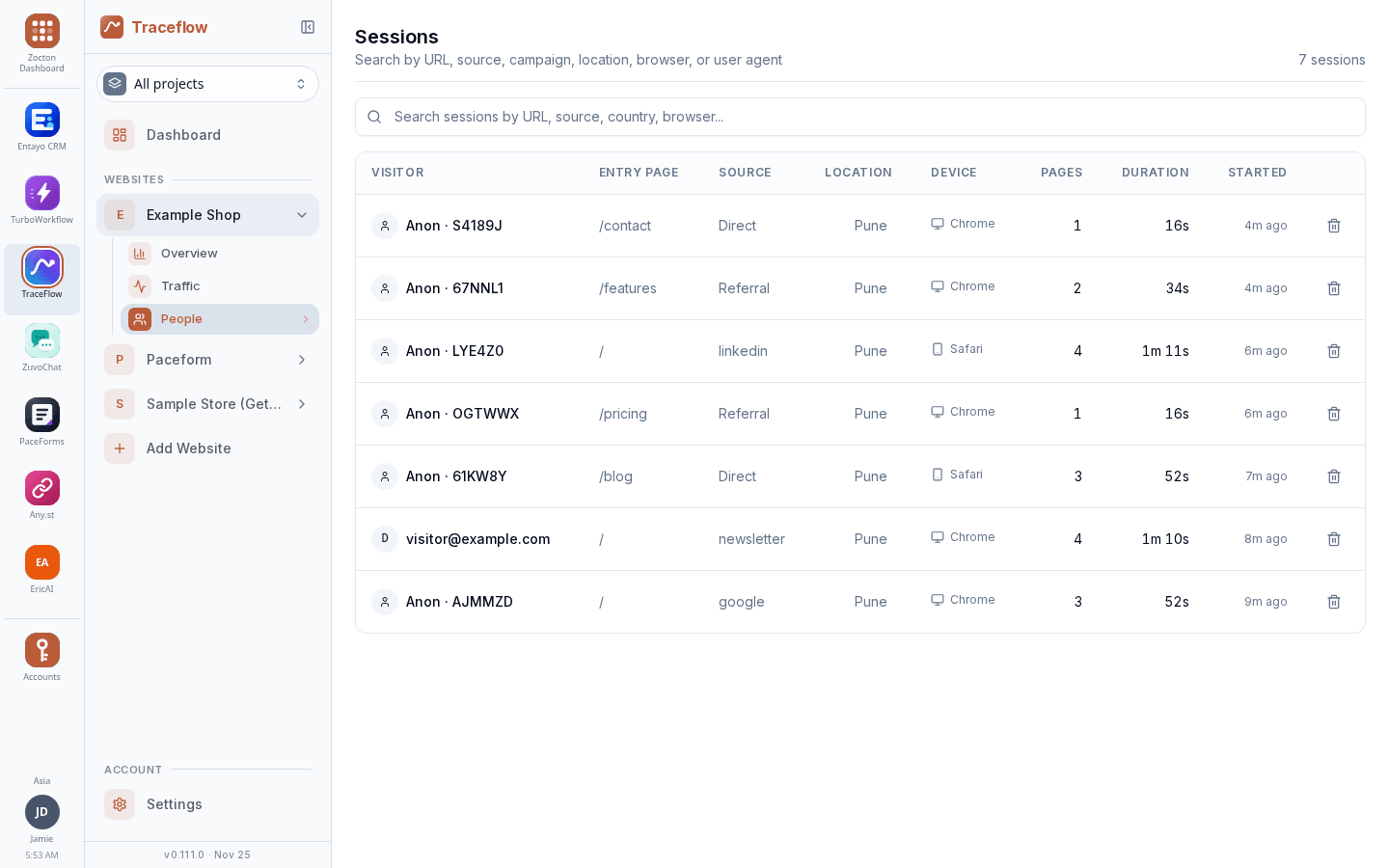
Each row shows the visitor, the Entry Page, Source, Location, Device, Pages, Duration and when it Started.
Read a session
A session's page has:
| Part | What it shows |
|---|---|
| Visitor | The visitor's name or email, or Anonymous visitor — click to open their page |
| Session Replay | The recording, where one was made |
| Session Info | Started, Last Activity, Website, Entry URL, Referrer |
| Acquisition | Source, Medium, Campaign, City / State / Country, OS / Browser, User Agent |
| Navigation Path | Every page of the visit, in order; the link icon opens the page |
Back to sessions returns to the list.
Watch a session replay
- Open a session that has a Session Replay card.
- Click Load replay. The recording plays in the card at double speed.
- Use the player to pause, seek or change the speed, or open it full screen. Press Esc to leave full screen.
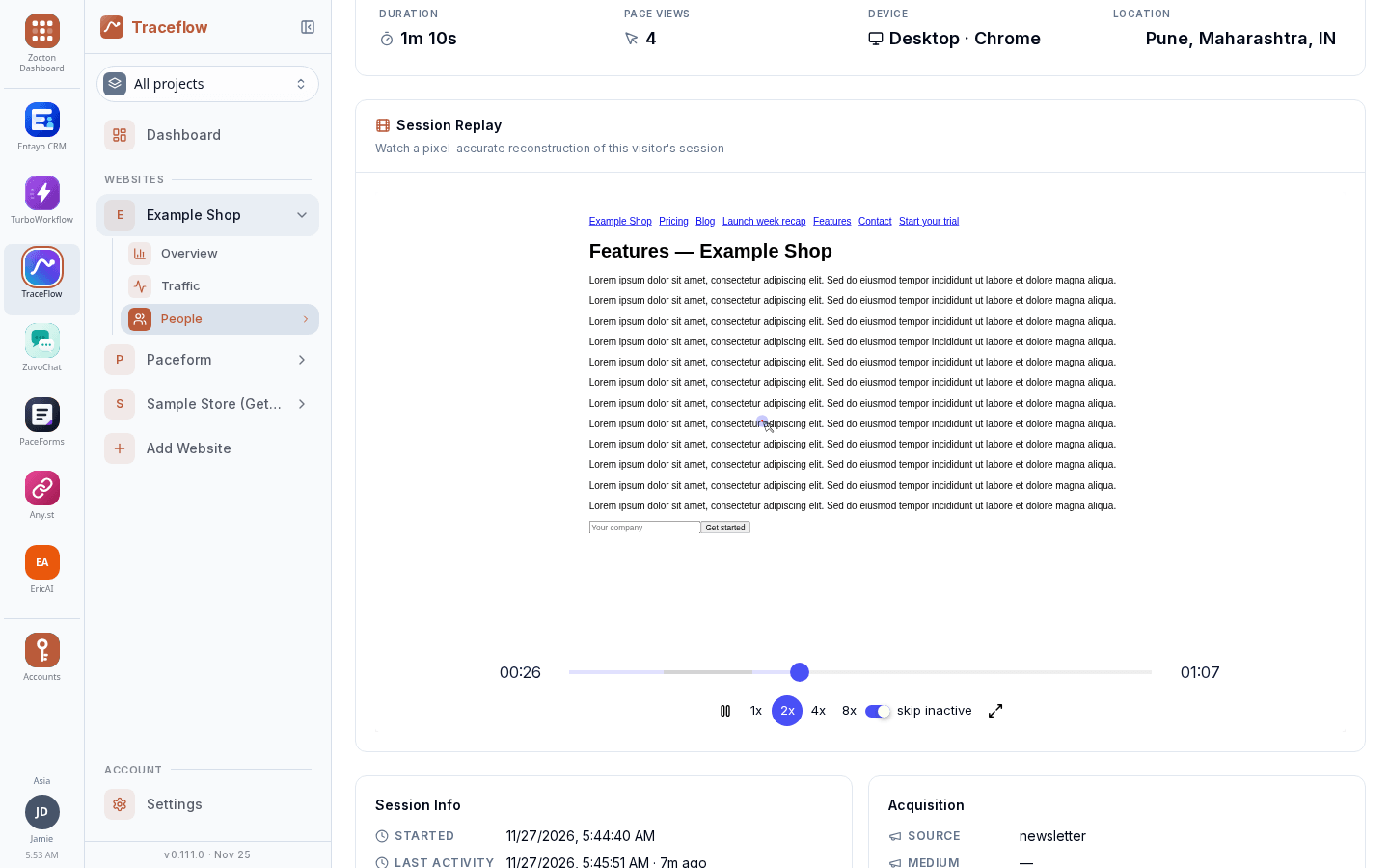
A replay is rebuilt from the page itself, not filmed: it shows the layout, scrolling, mouse movement, clicks and page changes. If a recording could not be made, the card says "No replay data was captured for this session."
Turn on session replay
Session replay is switched on for a website by the Zocton team, not from a switch in TraceFlow. To ask for it, contact support. For the Paceform website of each project (your PaceForms forms), recording is on from the start.
Keep recordings private
Two switches decide what a recording may show. They appear once replay is on for the website: open the website's Overview → Website Management, click Website settings (the sliders icon). For the Paceform website the button is Recording privacy settings.
| Switch | Default | What it does |
|---|---|---|
| Mask inputs & tagged elements | On | Hides text typed into form fields, and any element you tag with rr-mask, rr-block or rr-ignore. Recommended. |
| Mask all text | Off | Hides every piece of visible text on the page. The replay shows layout and interactions only. |
A change applies to visits recorded after it; recordings already made stay as they were. Masking happens in the visitor's browser, so hidden text is never sent to TraceFlow.
Hide parts of your own page
With Mask inputs & tagged elements on, add a class to your own HTML to hide something:
Code
Delete a session
- On the session's page, click Delete Session (or the bin icon in the Sessions list).
- Click Delete to confirm. The session, its page history and its recording are deleted for good.
Options
| Option | Where | What it does |
|---|---|---|
| Search | Top of Sessions | Finds sessions by address, source, campaign, location, browser or user agent |
| Filter chips | Above the search | Narrow the list to a page, source, place or device |
| Load replay | Session's page | Plays the recording |
| Mask inputs & tagged elements | Website settings | Hides typed text and tagged elements in recordings |
| Mask all text | Website settings | Hides all page text in recordings |
| Delete Session | Session's page | Deletes the session and its recording |
Good to know
- A session ends after an hour with no activity. A recording counts as activity, so a long recorded visit keeps its session open.
- Each device has its own sessions, even for one known person.
- Bots are never recorded.
- Images from other websites may not show inside a replay; the layout, text and interactions still do.
- Turning masking off shows what visitors type in your recordings. Tell your visitors in your privacy policy — see GDPR compliance.